Hidden iPhone Hacks You Probably Didn’t Know
The iPhone is packed with incredible features, but many users only scratch the surface of what their device can do. Apple continuously adds hidden tricks and shortcuts to make life easier, yet most people remain unaware of these handy hacks. Whether you’re a longtime iPhone user or a newcomer, these secret iPhone tips will boost your efficiency, enhance your experience, and unlock hidden capabilities you never knew existed.
1. Back Tap – Your Invisible Shortcut
Did you know you can tap the back of your iPhone to perform specific actions? Back Tap is a hidden accessibility feature that allows you to trigger actions like taking a screenshot, opening the camera, or even launching an app by tapping the back of your phone.
How to enable Back Tap:
- Go to Settings > Accessibility.
- Tap Touch and scroll down to Back Tap.
- Choose Double Tap or Triple Tap and assign an action to it.
Now, simply tap the back of your iPhone, and it will execute your chosen function instantly!
2. Secret iPhone Keyboard Tricks
Move the Cursor with Precision
Typing on an iPhone can be frustrating when you need to fix a typo. Instead of trying to tap exactly where you want to edit, simply press and hold the spacebar. Your keyboard transforms into a trackpad, allowing you to move the cursor precisely where you need it.
Quickly Add Symbols
Instead of switching between letters and numbers, try this faster way to insert punctuation:
- Press and hold the 123 key, slide your finger to the symbol you need, and release. The keyboard will automatically switch back to letters, saving you time.
3. Use the Apple Logo as a Custom Button
This trick is mind-blowing! Your Apple logo on the back of your iPhone can function as a button. You can set it to:
- Take a screenshot
- Open an app
- Lock your phone
- Toggle the flashlight
To enable this:
- Go to Settings > Accessibility > Touch > Back Tap.
- Assign an action to Double Tap or Triple Tap.
Now, your iPhone's logo becomes an invisible button!
4. Quickly Clear the Calculator
Did you enter the wrong number on the Calculator app? Instead of pressing C (Clear) and starting over, just swipe left or right on the number display to delete the last digit. This trick saves time, especially when performing complex calculations.
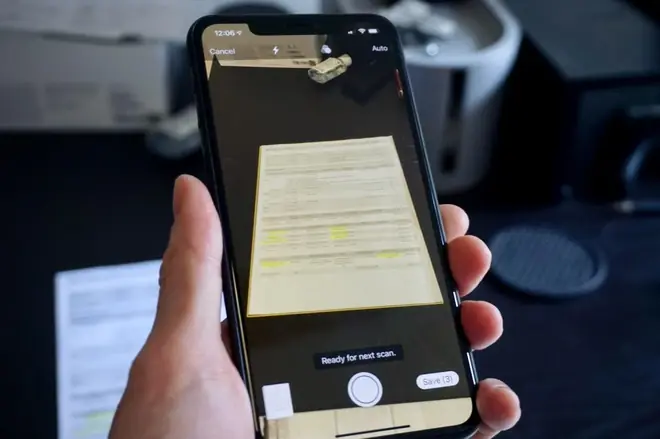
5. Scan Documents Without a Third-Party App
You don’t need a scanner or a separate app to scan documents. The Notes app has a built-in scanner that works flawlessly.
How to scan documents using the Notes app:
- Open the Notes app.
- Tap the camera icon and select Scan Documents.
- Position the document in view, and your iPhone will automatically detect and scan it.
- Save or share the scanned document as a PDF.
6. Use Siri to Control Your iPhone Hands-Free
Siri can do so much more than just answer questions. You can use voice commands to:
- Take a screenshot – Just say, "Hey Siri, take a screenshot."
- Turn on/off Wi-Fi – Say, "Hey Siri, turn off Wi-Fi."
- Identify a song – Ask, "Hey Siri, what song is this?" to instantly recognize music.
- Find your lost iPhone – If you have another Apple device, say, "Hey Siri, where’s my iPhone?"
7. Hide Apps from Your Home Screen
Want to keep certain apps private? Instead of deleting them, you can remove them from the Home Screen while keeping them accessible.
How to hide apps without deleting them:
- Press and hold the app icon.
- Select Remove App.
- Tap Remove from Home Screen (instead of Delete App).
The app will stay hidden but can still be accessed via Search or the App Library.
8. Measure Anything with Your iPhone
Your iPhone has a built-in measuring tool that can act as a virtual ruler.
How to use it:
- Open the Measure app.
- Point your camera at an object.
- Your iPhone will detect edges and display measurements in real time.
This is great for measuring furniture, wall dimensions, or even estimating suitcase sizes before a flight!
9. Boost Your Battery Life with These Tricks
If your battery drains too quickly, try these power-saving hacks:
- Enable Low Power Mode: Go to Settings > Battery > Low Power Mode.
- Reduce Background App Refresh: Turn it off under Settings > General > Background App Refresh.
- Use Dark Mode: OLED screens (iPhone X and later) use less power in Dark Mode.
- Turn Off Raise to Wake: Go to Settings > Display & Brightness and disable Raise to Wake.
10. Secret Code to Check iPhone Signal Strength
You can check your real network signal strength with a hidden Field Test Mode.
How to access it:
- Open the Phone app and dial *3001#12345#*.
- Press Call and you’ll enter the Field Test Mode.
- Look at the RSRP (Reference Signal Received Power) value – closer to -50 is a strong signal, while closer to -110 is weak.
This is useful if you're in an area with spotty reception and need to find the best signal.
11. Customize Your Vibrations
Ever wanted to set unique vibration patterns for different contacts? iPhone lets you create custom vibration alerts so you know who’s calling without even looking at the screen.
How to create custom vibrations:
- Go to Settings > Sounds & Haptics > Ringtone > Vibration.
- Tap Create New Vibration and tap out a unique pattern.
- Assign it to a contact under Contacts > Edit > Ringtone > Vibration.
Now, you’ll know who’s calling just by feeling the vibration!
12. Secret Swipe Gestures for Faster Navigation
- Swipe left on the Calculator to delete the last digit.
- Swipe right or left on Safari’s screen to quickly go back or forward.
- Swipe down from the Home Screen to open Spotlight Search instantly.
- Swipe right from the Lock Screen to quickly access the Camera.
Final Thoughts
Your iPhone is more powerful than you think—you just need to unlock its hidden potential! These useful iPhone tricks can boost productivity, save time, and enhance your overall experience.
Try them out and impress your friends with your iPhone expertise!