iPhone also provides an App Privacy Report feature that can help users understand how applications use granted permissions and interact with network activity.
You can generally find it under:
Settings → Privacy & Security → App Privacy Report.
If it is not already enabled, you may need to turn it on before activity begins appearing in the report.
The report can help you understand which applications accessed sensitive information and when certain network connections occurred.
What if the green dot appears but you cannot identify the application?
Do not immediately assume that your phone has been compromised.
First, close applications that may be using the camera or microphone.
Check whether you have an active video call, voice recording, camera session, or voice assistant feature.
Then reopen the relevant privacy settings and review recent activity.
If the indicator continues appearing unexpectedly, restart your phone and investigate again.
The most important thing is to identify the source rather than simply reacting to the presence of the dot.
Because once you know which application is responsible, you can decide whether its access makes sense — or whether its permissions should be removed.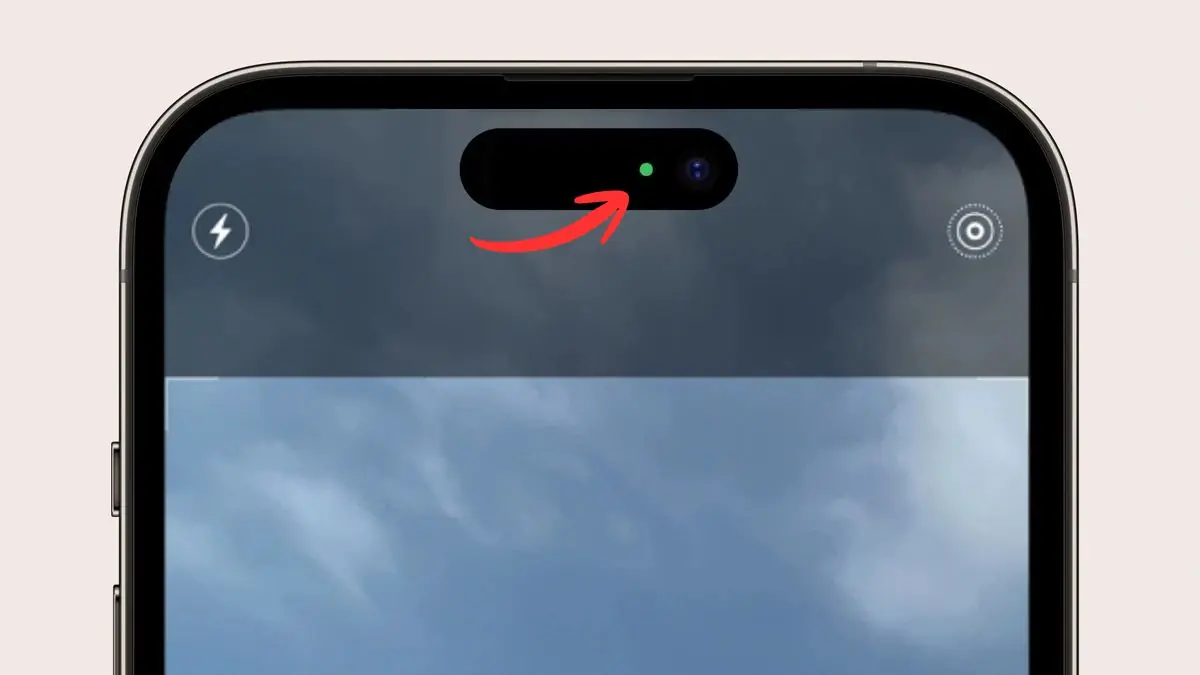
CHAPTER 3: WHAT TO DO IF AN APP IS USING YOUR CAMERA OR MICROPHONE WITHOUT A CLEAR REASON
Imagine opening your phone to check a message and noticing the green dot.
You are not taking a picture. You are not recording a video. You are not participating in a video call.
You check the privacy settings and discover that an application you rarely use recently accessed your camera.
What should you do?
The first step is to remain calm and investigate.
There may be a legitimate explanation. An application could have opened a camera feature accidentally, continued an unfinished session, or accessed the hardware through a function you did not immediately recognize.
But if the access appears unnecessary or unexpected, you should review its permissions.
1. Revoke unnecessary camera access
Camera permission should be limited to applications that genuinely need it.
A video-calling application, camera editor, or social media platform may reasonably require camera access when you use certain features.
However, a simple calculator, wallpaper application, or basic flashlight tool generally has no obvious reason to access your camera.
That does not automatically make such an application malicious, but unnecessary permissions increase your exposure if the application is poorly designed or compromised.
On Android, open:
Settings → Apps → Select the application → Permissions → Camera.
Choose Don't allow if camera access is unnecessary.
On iPhone, open:
Settings → Privacy & Security → Camera.
Switch off access for applications that do not need it.
You can restore permission later if you decide to use a feature that genuinely requires the camera.
2. Review microphone permissions separately
Camera and microphone access are different permissions.
An application may need one without needing the other.
For example, a photo-editing application may require camera access to take pictures but may not need microphone access.
A voice-recording application needs microphone access but generally does not need the camera.
Review both permissions independently rather than allowing an application to access everything simply because it requests permission.
This approach follows the principle of least privilege: applications should receive only the access necessary to perform their intended functions.
3. Force-close suspicious or unnecessary applications
If an application appears to be using your camera or microphone unexpectedly, close it.
On Android, open the recent apps screen and swipe the application away. If the problem continues, you can also use the app information page to force-stop it.
On iPhone, open the App Switcher and close the relevant application.
Keep in mind that force-closing an application is not a substitute for revoking unnecessary permissions.
If the application still has permission, it may access the hardware again when you reopen it.
4. Update your phone's operating system
Security vulnerabilities can sometimes allow applications or attackers to behave in unexpected ways.
Software updates often include security fixes, improvements to permission controls, and corrections to system vulnerabilities.
On Android, check:
Settings → System → Software update.
The exact location may vary by manufacturer.
On iPhone, go to:
Settings → General → Software Update.
Install available updates from the official system update interface.
It is also a good idea to keep applications updated through Google Play or Apple's App Store.
5. Remove applications you do not recognize
If you find an application you do not remember installing, investigate it.
Check its name, developer, installation source, and permissions.
Some applications may have unfamiliar names because they are system components or services installed by the phone manufacturer. Do not delete system applications simply because their names look unfamiliar.
However, if an unfamiliar third-party application appears unnecessary or suspicious, consider uninstalling it.
On Android, applications installed outside official stores deserve additional scrutiny, particularly if they requested broad permissions.
On iPhone, review applications installed through the App Store and any configuration profiles or management settings you do not recognize.