You do not need to be a cybersecurity expert to improve your smartphone privacy.
A few practical changes can significantly reduce unnecessary access to your camera and microphone.
The most effective approach is to make privacy checks part of your regular phone maintenance.
1. Review permissions every few weeks
Take a few minutes to examine which applications have access to your camera, microphone, location, and contacts.
On Android, use the Privacy Dashboard and individual application permission settings.
On iPhone, visit Settings → Privacy & Security and review each category.
Ask yourself whether every application still needs the access it has been granted.
An application that needed camera access six months ago may no longer require it today.
2. Use one-time or temporary permissions when available
Some Android versions provide an option to allow an application to access the camera or microphone only once.
This can be useful when you want to use a feature temporarily without granting ongoing permission.
Other permission options allow access only while the application is being used.
Whenever possible, choose the least permissive setting that still allows the application to function properly.
3. Use system-wide camera and microphone controls
Many Android devices provide Quick Settings toggles that allow users to disable camera or microphone access at the system level.
The exact availability and behavior depend on the Android version and manufacturer.
When these controls are available, they can provide an additional layer of protection.
If you are not using your camera or microphone, you may choose to turn off access temporarily.
On iPhone, the system manages access through individual permissions and privacy indicators rather than offering the same universal camera and microphone toggles on every model.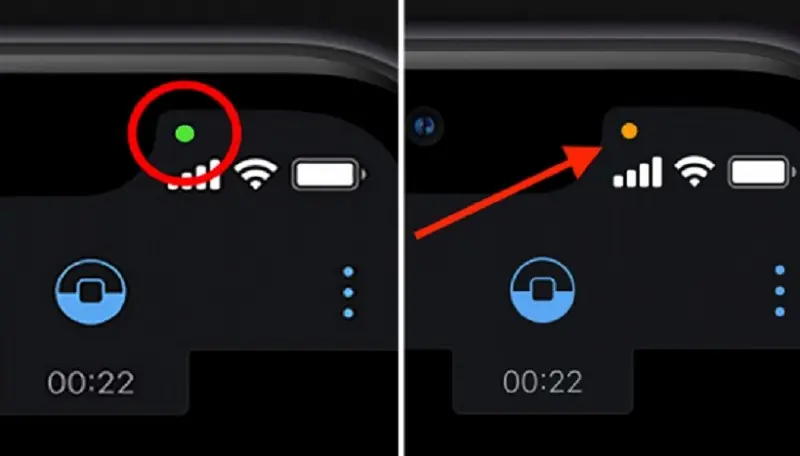
4. Download applications from trusted sources
One of the simplest ways to reduce security risks is to be careful about where you download applications.
For Android, use Google Play whenever possible and review the developer, application information, and permissions.
For iPhone, use the App Store and pay attention to developer information and application privacy details.
Avoid installing applications from unfamiliar websites unless you have a clear reason and understand the associated risks.
An application can appear legitimate while still requesting excessive access.
5. Be careful with links and attachments
Many security problems begin with deceptive messages.
You may receive a text message claiming that your account has been suspended, a delivery has failed, or a payment needs immediate attention.
The message may contain a link leading to a fake website designed to steal passwords or financial information.
Avoid opening unexpected links, especially when the message uses threatening language or creates a sense of urgency.
If a message claims to come from a bank or service provider, visit the official application or website directly instead of following the link.
6. Use strong authentication
Your phone may contain access to email, banking applications, social media accounts, private photographs, and personal documents.
Protecting the device itself is therefore essential.
Use a strong screen lock, enable biometric authentication when appropriate, and activate two-factor authentication for important accounts.
A strong, unique password for each major account can reduce the damage if one password is exposed.
7. Keep your software updated
Operating system updates are not only about new features.
They often include important security improvements.
Install updates through the official settings menu, and avoid downloading unofficial update packages from unknown websites.
Keep applications updated as well, especially those that handle sensitive information.
8. Check for unfamiliar management profiles and special permissions
Some forms of device management are legitimate, particularly on phones provided by employers or schools.
However, if you find an unfamiliar configuration profile on an iPhone or unexpected device-management settings on Android, investigate them.
On iPhone, review:
Settings → General → VPN & Device Management.
On Android, review device administrator applications, accessibility services, and other special permissions if you suspect unauthorized control.
Do not remove a legitimate work or school management profile without understanding the consequences.
9. Do not install random security applications
Some users respond to privacy concerns by downloading multiple antivirus or phone-cleaning applications.
This is not always helpful.
A security application should come from a reputable developer and have a clear purpose. Be cautious of tools that promise to detect every form of spying, instantly remove all malware, or guarantee complete privacy.
Unnecessary security applications can themselves request sensitive permissions.
Start with the privacy and security tools already built into your operating system.
10. Know when a professional security review is necessary
If you continue seeing unexplained camera or microphone access, find unfamiliar device-management settings, or suspect that your accounts have been compromised, consider getting help from a reputable device manufacturer, carrier, or cybersecurity professional.
If you believe someone has access to your personal accounts, use a trusted device to review account sessions, revoke unfamiliar logins, change passwords, and enable additional authentication.
The goal is to secure the entire account and device environment, not simply make the green dot disappear.