Most people use the volume buttons on their smartphones dozens of times every day without giving them much thought. Whether they are turning up the music, lowering the sound during a phone call, or adjusting the volume while watching a video, these small buttons seem to have one simple purpose.
But what if you have been overlooking some of their most useful features?
On many modern smartphones, the volume buttons can do much more than control sound. Depending on your device, operating system, and settings, they may allow you to take photographs, capture screenshots, control media playback, activate accessibility features, and even help you restart a frozen phone.
Some of these functions are built directly into the operating system, while others depend on camera settings, manufacturer-specific features, or third-party applications.
The interesting part is that you may already have access to several of these shortcuts without installing anything.
Imagine trying to take a photograph with one hand while holding your phone at an awkward angle. Or needing to capture something on your screen quickly before it disappears. In situations like these, a simple physical button can be much more convenient than searching through menus.
The volume buttons can also become particularly useful when your touchscreen is difficult to operate, when you are wearing gloves, or when you need to perform an action quickly.
So before assuming that these buttons are only there to make your phone louder or quieter, take a closer look.
Here are six useful tricks that could change the way you use your smartphone every day.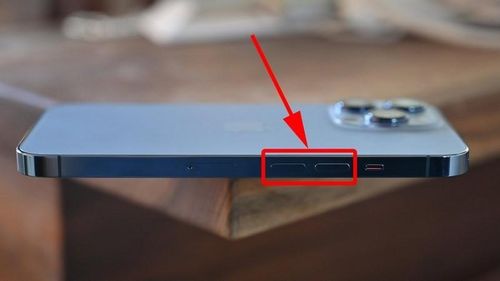
1. Use the Volume Buttons to Take Photos More Easily
One of the most useful functions of smartphone volume buttons is their ability to act as a camera shutter.
Many people struggle to take photographs using the on-screen shutter button, especially when holding their phones horizontally or trying to capture a picture with one hand.
You may have experienced this situation: you carefully position your phone, adjust the angle, and finally get everything ready. But just as you tap the shutter button, your hand moves slightly, causing the photograph to become blurry or poorly framed.
Using a physical volume button can make this process easier.
How does it work?
On many smartphones, pressing either the volume-up or volume-down button while the camera application is open can take a photograph.
Instead of touching the on-screen shutter icon, you simply press the physical button.
This can be especially convenient when taking selfies, group photographs, or pictures in landscape orientation.
For example, imagine holding your phone horizontally to photograph a beautiful sunset. Your fingers may naturally rest near the side of the device, making the volume button easier to reach than the shutter icon on the screen.
The same technique can also help when taking photographs of objects placed on a table or capturing pictures from an unusual angle.
What about recording videos?
Some smartphone camera applications also allow the volume buttons to start or stop video recording.
However, this behavior varies between manufacturers and camera applications.
On certain devices, the buttons may continue controlling zoom or volume instead. You may need to change the camera settings to select the action you prefer.
How to try it
-
Open your phone's Camera application.
-
Switch to Photo mode.
-
Hold your phone in the position you want.
-
Press either volume button.
-
Check whether the camera captures a photograph.
If nothing happens, open the camera settings and look for an option related to volume-button functions, shutter controls, or gestures.
Some devices also offer different actions for the volume-up and volume-down buttons.
Why this trick is useful: It gives you another way to take photographs without touching the screen, making certain camera angles and one-handed pictures easier to capture.
2. Capture Screenshots Without Searching for On-Screen Controls
Screenshots are among the most frequently used smartphone functions.
People capture screenshots to save important messages, remember an address, keep a record of an online purchase, share information with friends, or preserve something they might need later.
However, not everyone knows that the volume buttons are part of the standard screenshot combination on many smartphones.
The common screenshot shortcut
On many Android devices, pressing the Power button and Volume Down button simultaneously captures a screenshot.
The exact timing matters.
If you press one button noticeably before the other, your phone may simply lock the screen or change the volume.