Depending on the device and settings, this may involve pressing and holding both volume buttons.
Some supported features include:
-
Screen readers.
-
Magnification.
-
Accessibility menus.
-
Selected assistive services.
-
Other specialized controls.
On iPhones, accessibility shortcuts can also be configured, although the standard method generally uses a triple-click of the Side button or Home button rather than the volume buttons.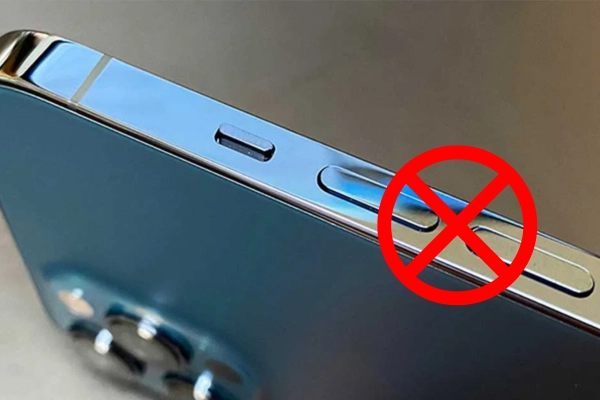
Why would someone need this?
Consider someone who has difficulty reading small text on a smartphone screen.
Instead of navigating through multiple menus each time they need a larger display, an accessibility shortcut may provide quicker access to magnification.
Another example involves people who use screen-reading technology.
A screen reader can describe items displayed on the screen and help users navigate applications without relying entirely on visual information.
Being able to activate these tools quickly can make a significant difference.
Accessibility shortcuts are also useful when someone needs temporary assistance rather than keeping a feature permanently enabled.
How to configure the feature
On Android, the process varies depending on the manufacturer.
A common route is:
-
Open Settings.
-
Find Accessibility.
-
Look for Accessibility shortcuts or Shortcut settings.
-
Choose the feature you want to activate.
-
Follow the instructions for assigning a button combination.
On iPhone, open Settings, select Accessibility, and look for Accessibility Shortcut.
You can then choose supported features that can be activated through the Side or Home button shortcut.
Why this trick is useful: It can turn a complicated settings feature into something you can activate quickly whenever you need it.
5. Use Button Combinations When Your Phone Freezes
Almost everyone has experienced a smartphone that suddenly stops responding.
You tap the screen, swipe upward, press an application icon, and nothing happens.
Sometimes the device becomes extremely slow. Other times, the screen freezes completely.
This can happen because of software errors, an application malfunction, insufficient available resources, or temporary system problems.
When the touchscreen is not responding, the physical buttons may provide another way to regain control.
What is a force restart?
A force restart is a method of restarting a device when normal touchscreen controls are unavailable.
It is different from simply turning the screen off.
Depending on the phone model, the process may involve holding the Power button together with one of the volume buttons.
For many Android devices, holding the Power button and Volume Down button for several seconds can trigger a forced restart.
However, the exact procedure differs between manufacturers and models.
Some phones require a longer press, while others use a different combination.
What about iPhones?
For iPhones with Face ID, the standard force-restart procedure generally involves:
-
Quickly pressing and releasing Volume Up.
-
Quickly pressing and releasing Volume Down.
-
Holding the Side button until the Apple logo appears.
This is not the same as pressing all three buttons simultaneously.
Older iPhone models use different procedures.
Does a force restart delete your photos?
A normal force restart is generally designed to restart the operating system without erasing stored data.
However, unsaved work in an application may be lost if the device becomes unresponsive.
A force restart should not be confused with a factory reset.
A factory reset is a separate process that can erase personal data and restore the phone to its original settings.
If your device freezes frequently, restarts unexpectedly, or becomes unusually hot, the underlying problem may require further investigation.
Possible causes include problematic applications, software bugs, insufficient storage, or battery-related issues.
Why this trick is useful: Knowing the correct restart combination can help you recover control of a frozen phone without relying on the touchscreen.
6. Access Emergency Features More Quickly
This is perhaps the most important function to understand because it can become relevant during an emergency.
Modern smartphones include emergency features designed to help users contact emergency services or designated contacts when they cannot easily navigate the screen.
On many devices, physical buttons play a role in activating these functions.
However, the exact procedure is different between iPhone and Android models.
Emergency SOS on iPhone
On many recent iPhones, Emergency SOS can be activated by holding the Side button and one of the volume buttons.
The screen then displays emergency options.
Depending on the model, region, and settings, continuing to hold the buttons may initiate an emergency call after a countdown.